Below is the how-to in getting connected to the MBS FTP site for uploading and downloading of files that MBS Support staff have available or require the user to provide from their computer.
-
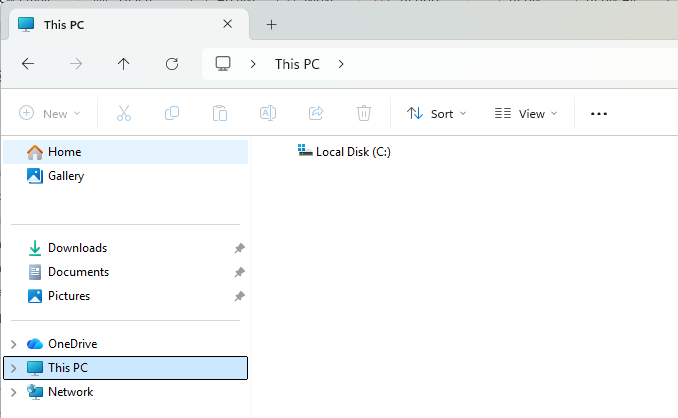
Open Windows Explorer (or File Explorer – depends on Windows OS). See top image.
-
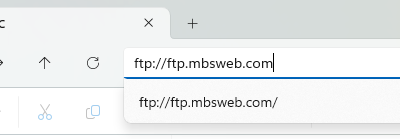
In the Address bar, enter the site address shown below. See second image.
-
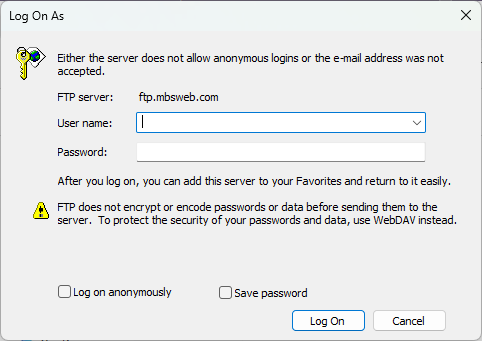
The user will be asked for their credentials. These credentials are generated by MBS, one set per MBS client, and are given when the client gets the initial installation package. See third image.
-
If, for any reason you do not have these credentials, please contact MBS. Send email to help@mbsweb.com.
-
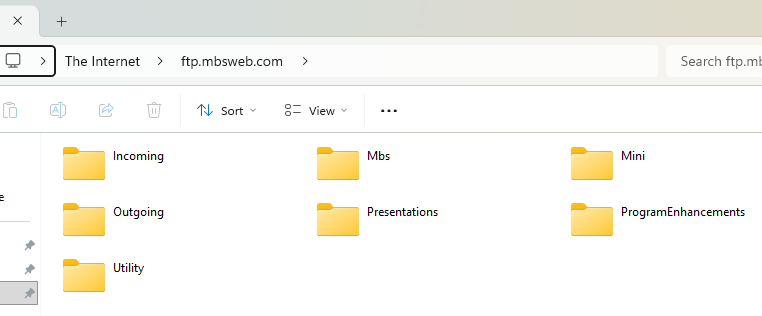
Once the user gets access, the window will show seven (7) folders. Below are the seven folders and a brief description of each. See bottom image.
-
Incoming – Client folders for file transfers.
-
Mbs – Current version of the MBS application.
-
Mini – Current version of the MBS Mini application.
-
Outgoing – Other resources.
-
Presentation – Past MetalCon and Webinars resources.
-
ProgramEnhancements – Additional PE resources.
-
Utility – Installers and other resources.